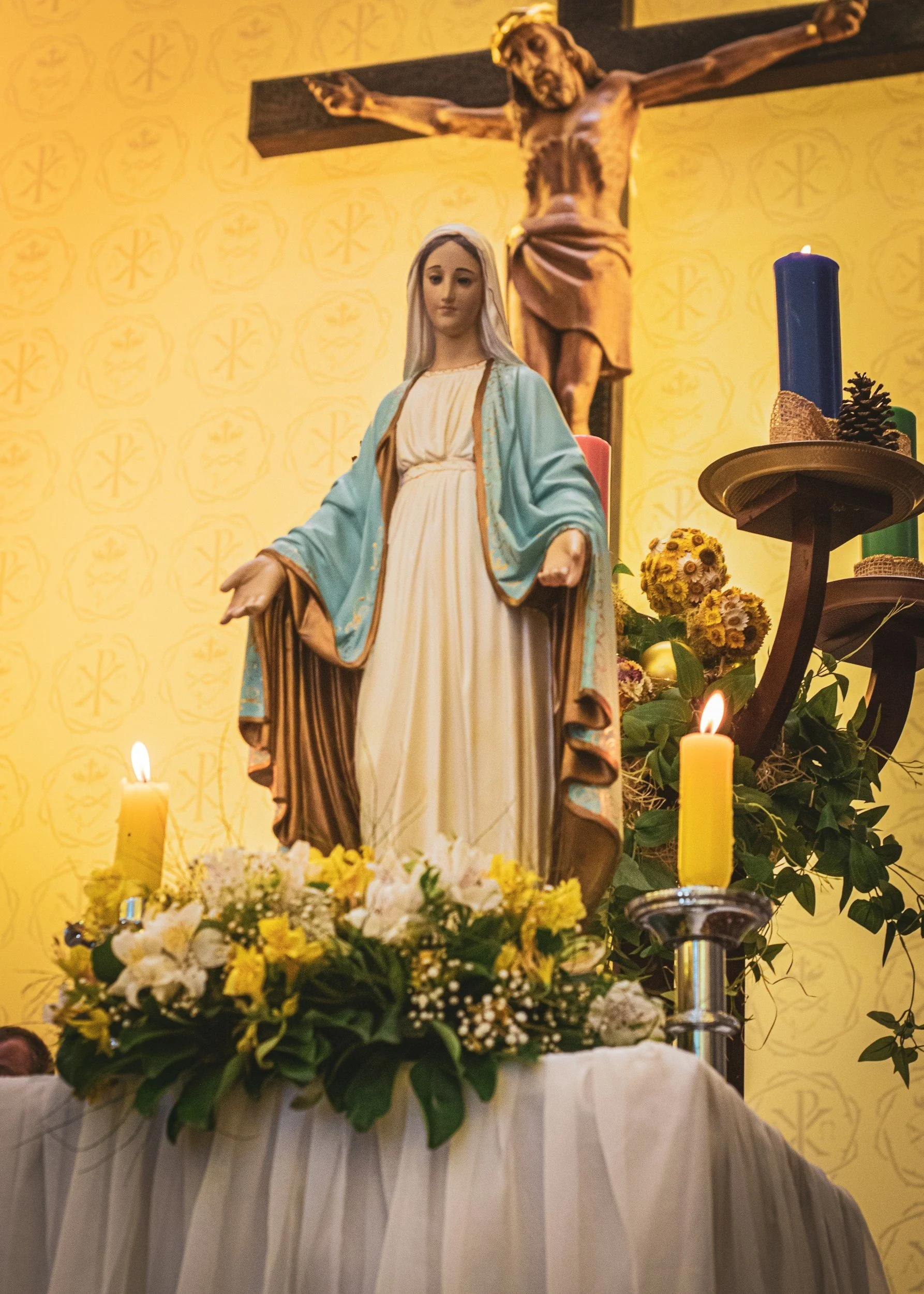

Using Devotio
Everything you need to begin praying
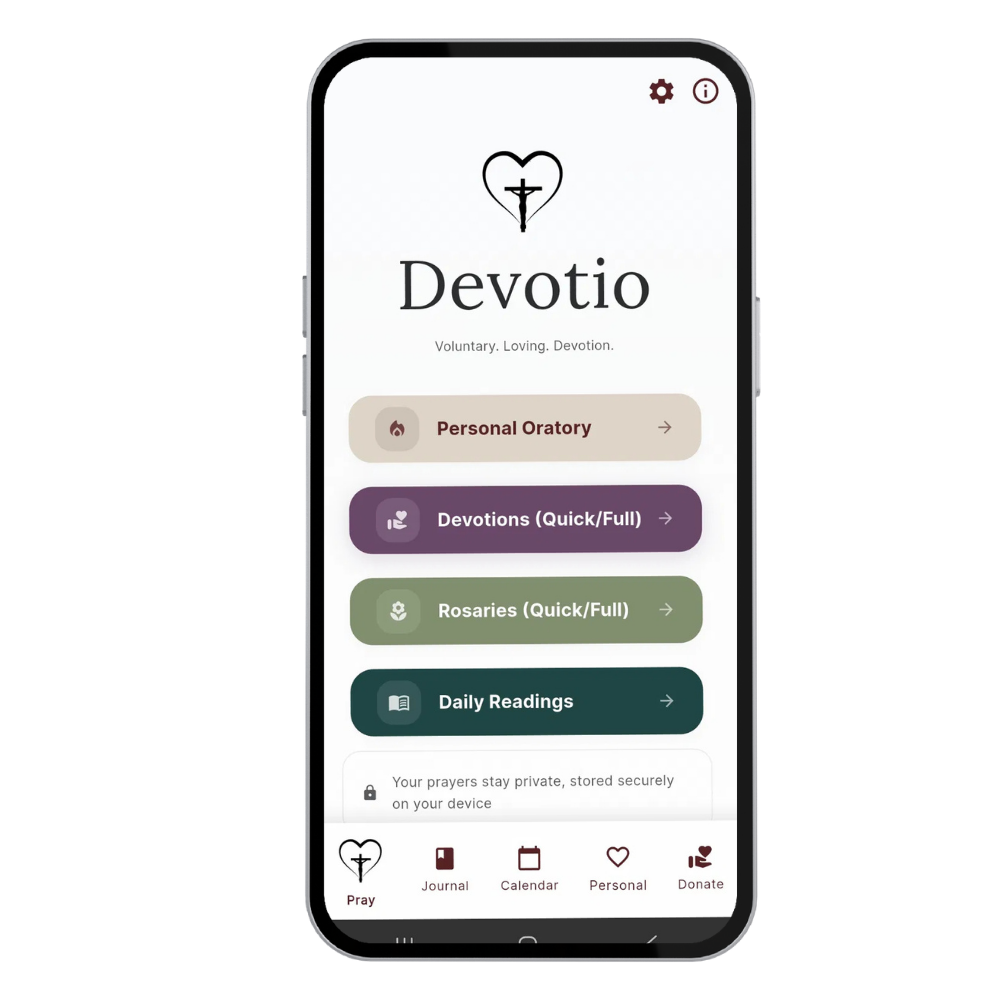
Devotio is designed to be simple. This guide covers the features you will use most.


“O Jesus, I surrender myself to You, take care of everything!”
〰️
“O Jesus, I surrender myself to You, take care of everything!”
“O Jesus, I surrender myself to You, take care of everything!” 〰️ “O Jesus, I surrender myself to You, take care of everything!”
Three Translations
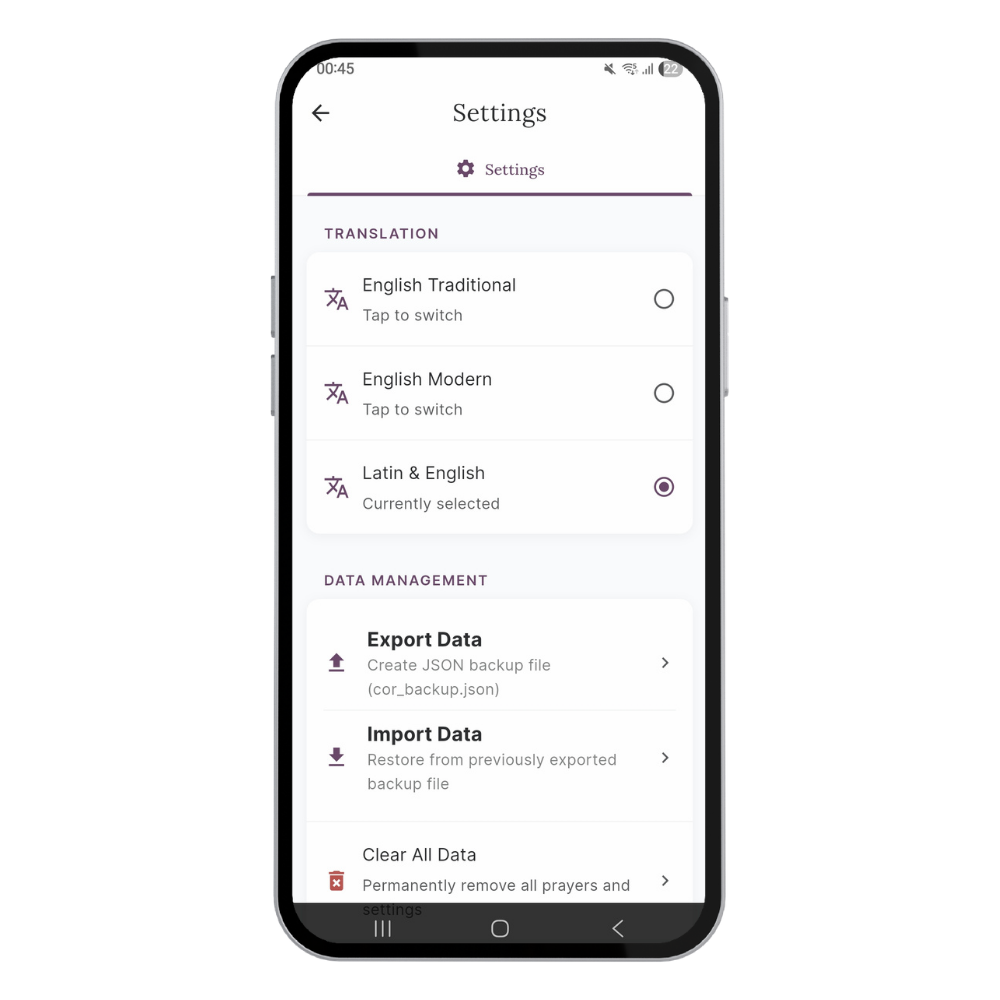
Every prayer, Scripture passage, and litany in Devotio is available in three translations. You set your preference once in Settings, and it applies across the entire app — the Rosary, the Stations, the Oratory, the novenas, everything.
Translations
Modern English | Catholic Public Domain Version
Traditional English | Douay-Rheims
Latin | Clementine Vulgate
——
Tap the Settings icon (⚙) in the top right of the home screen.
Find the Translation setting and select your preferred option: Modern English, Traditional English, or Latin.
Your choice applies immediately across all prayers, Scripture, and litanies. You can change it at any time.
You are not locked in: The translation setting can be changed between sessions, decades of the Rosary, or stations.
Personal Oratory
The Personal Oratory is the heart of Devotio. It prepares a session shaped to your needs - your petitions, your devotions, the saints who can intercede for you. Choose the quick path or take the full four-step preparation.
Quick Oratory
Under a minute to set up
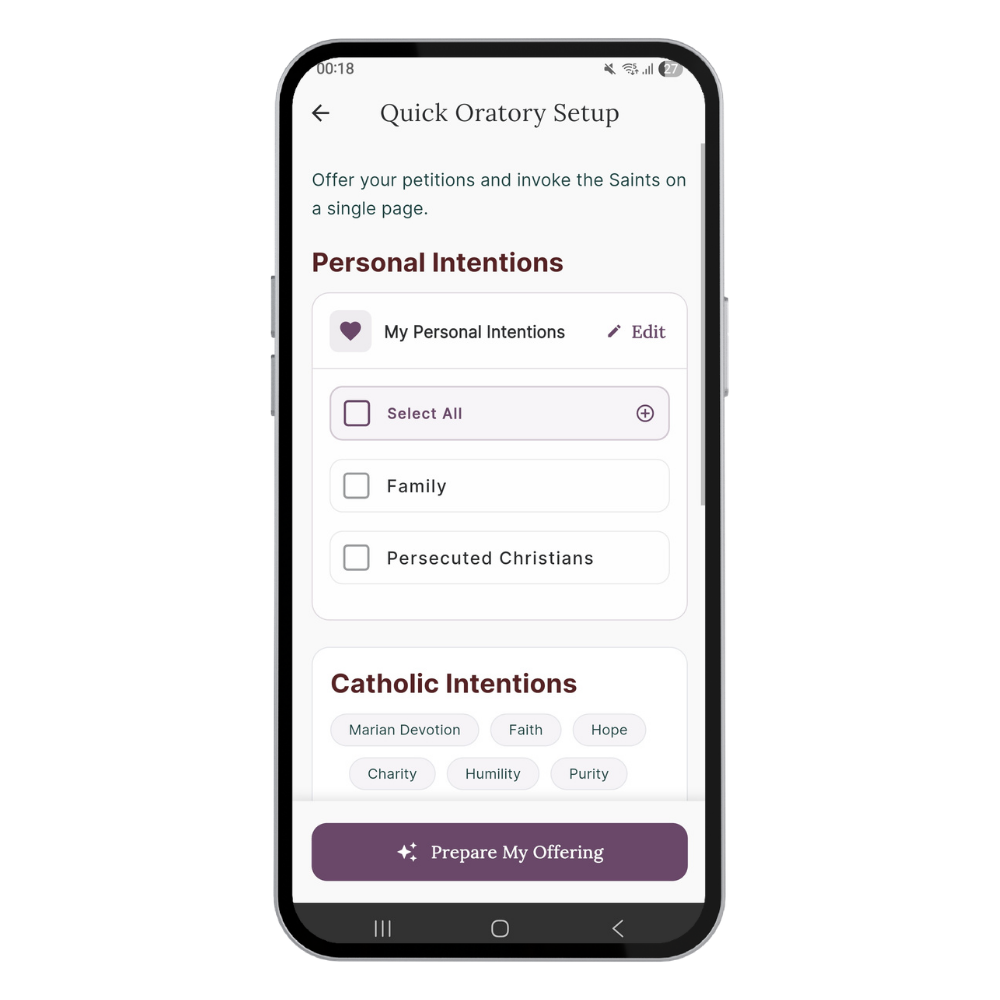
Choose your intentions on a single page and tap Prepare My Offering. Ideal when time is short but you want your prayer to carry your intentions.
Tap Personal Oratory on the home screen.
Select Quick Oratory - A concise path to prayer.
Under My Personal Intentions, tick the intentions you want to carry into this session.
Choose a virtue or theme to focus your prayer — Faith, Hope, Charity, and others. This shapes the Saints that Devotio suggests for your session.
Tap Prepare My Offering to begin.
Full Oratory
Complete guided preparation
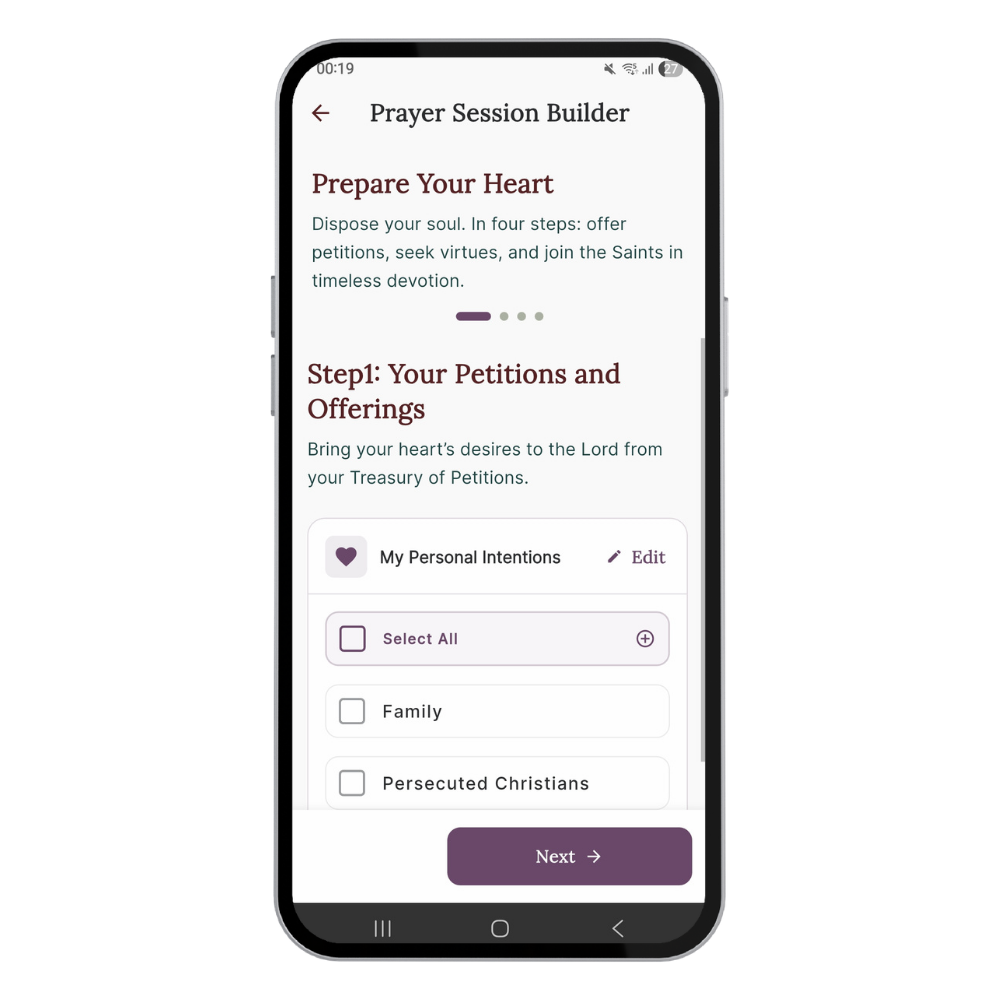
A four-step builder: your petitions, a virtue or theme for focus, saints for intercession, and prayers from the treasury of the Church. Two to three minutes to prepare.
Personal Oratory on the home screen, then select Full Oratory - Complete guided experience.
Your Petitions and Offerings. Select your personal intentions, then tap Next.
Virtues and Themes. Choose a virtue or theme to focus your prayer — Faith, Hope, Charity, and others. This shapes the Saints and Scripture Devotio suggests for your session.
The Communion of Saints. Choose from saints recommended for your intentions, or browse all 165 saints. Tap Next.
The Treasury of Prayer. Add foundational prayers or litanies to your session.
Tap Prepare My Offering to begin.
Intentions Diptych
Keep the people you pray for close to hand
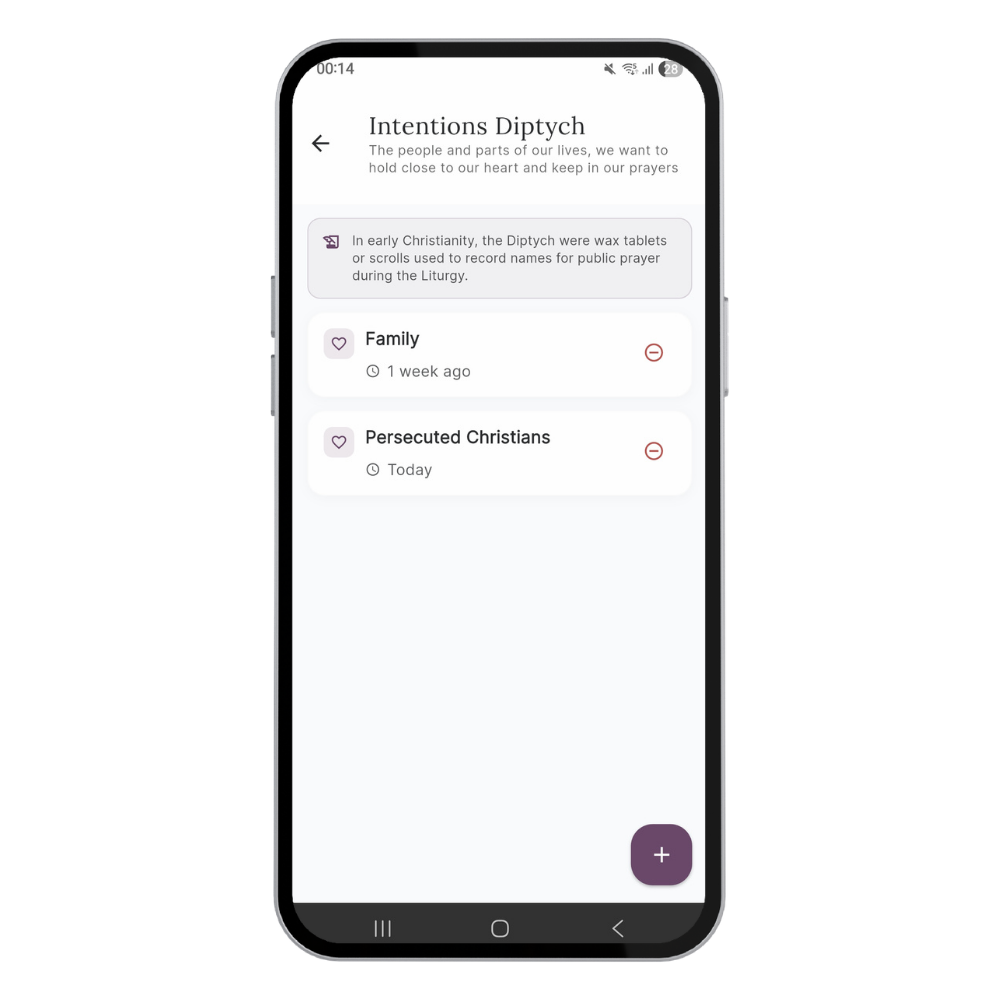
In the early Church, the Diptych was a wax tablet on which names were written for inclusion in the prayers during the Liturgy. In Devotio, it is your private list of intentions - names, people, causes - that you carry into every offering you build.
Intentions Diptych
Tap Personal in the bottom navigation bar, then tap Intentions Diptych.
Tap the + button at the bottom right to add a new intention. Give it a name - a person, a cause, or anything you wish to hold in prayer.
Your intentions appear in the list with the date they were added. To remove one, tap the − icon beside it.
When you build any session in the Personal Oratory, your intentions are ready for selection. Tick any you want to carry into that prayer.
Your intentions are private. They are stored only on your device. They are never transmitted anywhere, seen by anyone, or used for any purpose other than your own prayer.
The Rosary
All twenty mysteries, bead by bead.
Devotio includes all four sets of mysteries - Joyful, Luminous, Sorrowful, and Glorious - with the traditional day-by-day mapping shown for each. You can follow the tradition or choose freely.
A Quick Rosary lets you pray a single decade when time is short.
The Rosary
Tap (Quick/Full) on the home screen.
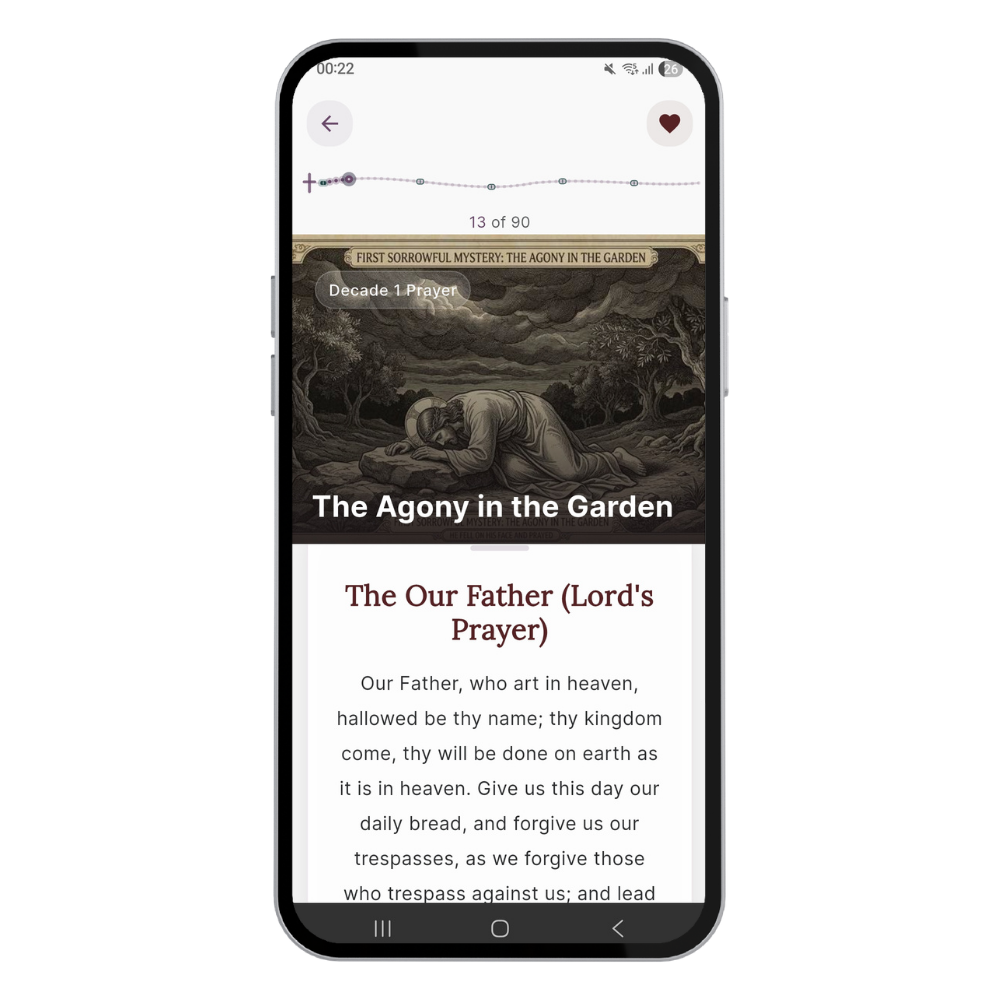
Choose Quick Rosary for a single decade, or Dominican Rosary for the full five-decade form.
Step 1 — Choose Your Mystery. Select from the four sets. The traditional day is shown beneath each. Tap Next.
Set your intentions and any additional prayers in the following steps, then tap Prepare My Offering to schedule or to begin.
Each bead is shown in the tracker at the top of the screen. The mystery image appears above the prayer text. Tap Continue to move to the next bead.
Translation: Prayers are available in modern English, traditional English (Douay-Rheims), and Latin (Vulgate). Set your preferred translation in Settings before you begin.
Stations of the Cross
All fourteen stations, with your intentions carried through.
The Stations guide you through the Passion of Christ, station by station, with beautiful art, song and prayer at each step. As with all devotions in Devotio, your personal intentions are brought before the Lord before you begin.
Stations of the Cross
Tap Devotions (Quick/Full) on the home screen and select Stations of the Cross.
Step 1 — My Personal Intentions. Select the intentions you want to offer. Tap Next.
Continue through the remaining setup steps to add saint, then tap Prepare My Offering to schedule or to begin.
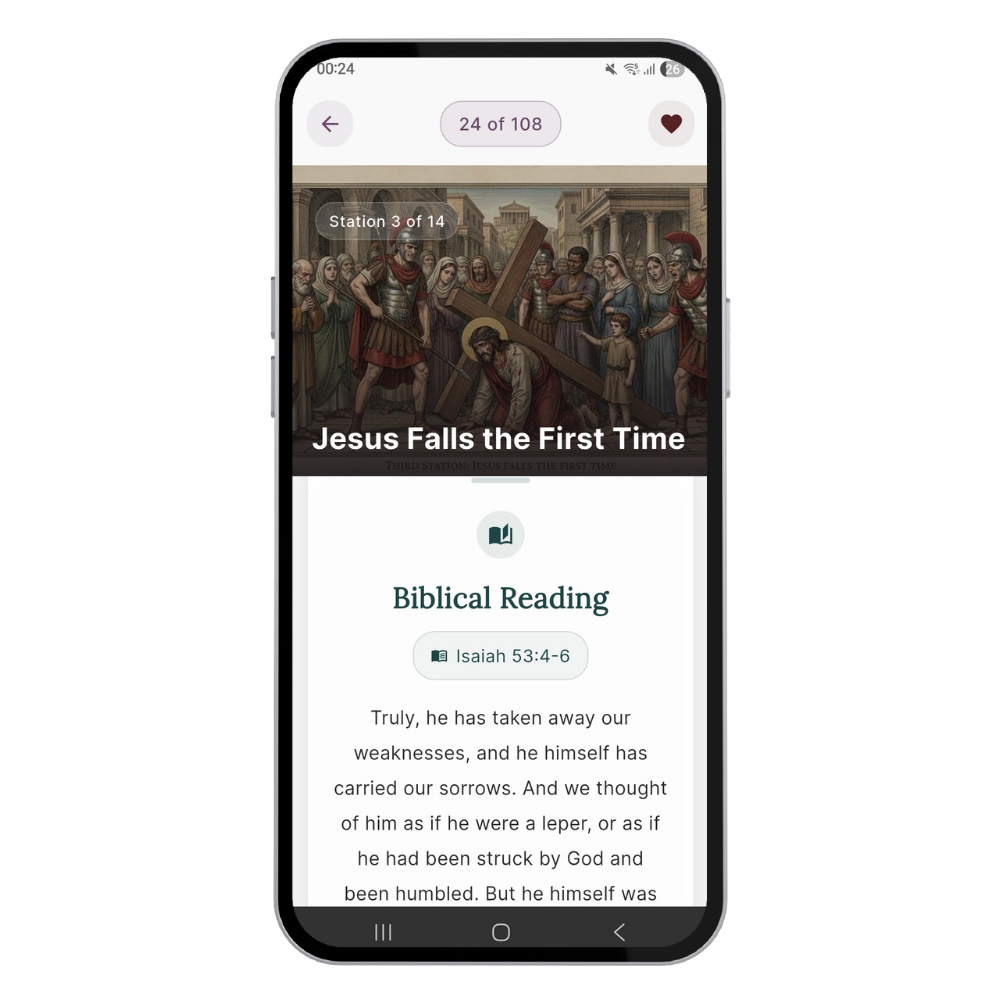
Each station opens with its image and the response: We adore you, O Christ, and we praise you, because by your holy cross you have redeemed the world. Tap Continue to move through the prayers for that station.
The counter at the top (e.g. 8 of 108) shows your position across the full session. The station label in the image tells you which of the fourteen stations you are on.
The Surrender Novena
Nine days of trust. Prayed for your intentions.
The Surrender Novena is a nine-day prayer of abandonment to Divine Providence attributed to Fr. Dolindo Ruotolo. In Devotio, it is woven through with your personal intentions and can be scheduled so that each day's prayer arrives at the right time.
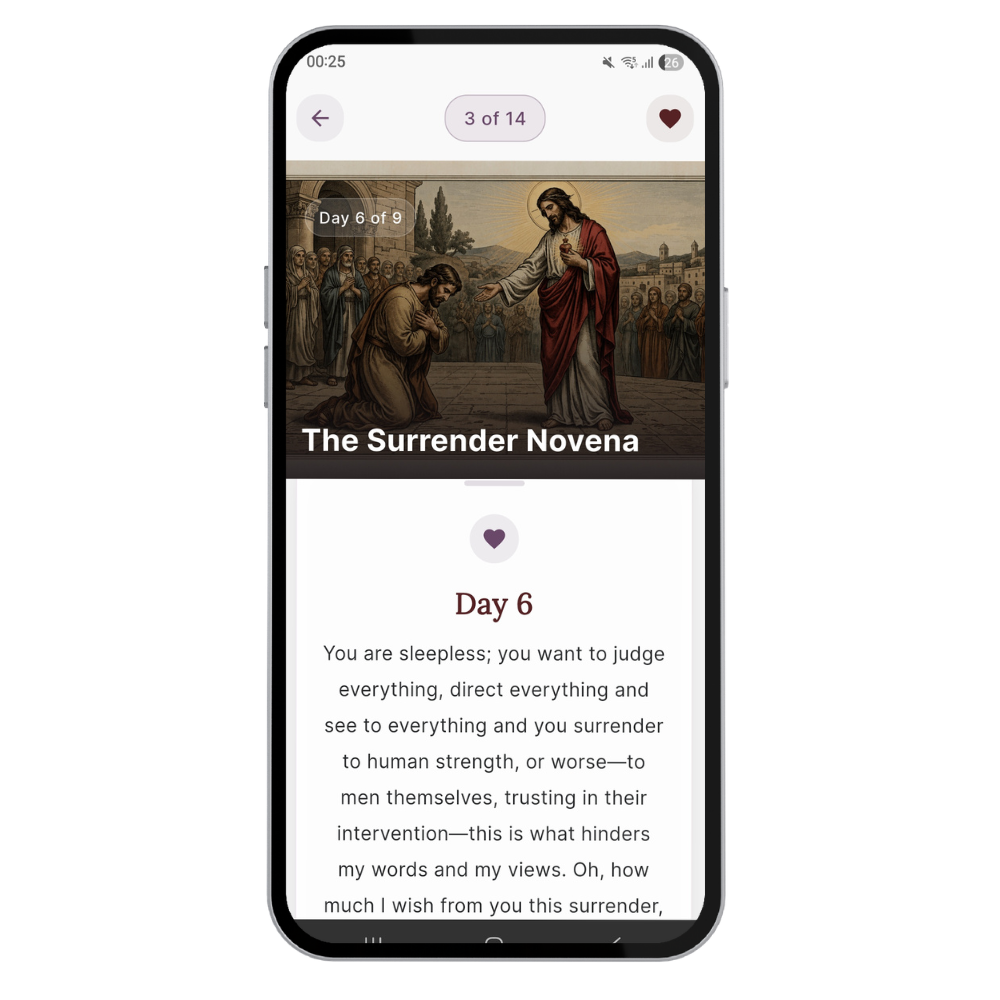
The Surrender Novena
Tap Devotions (Quick/Full) on the home screen and select Surrender Novena.
Set your personal intentions
Schedule The Surrender Novena, give it a title (e.g. For persecuted Christians), choose a date and time, then tap Save Schedule. Or tap Schedule and Pray Now to begin the next day immediately.
On the Select a Day screen, choose the day of the Surrender Novena you want to pray. Day 1 is selected by default.
Each day's prayer text appears below a sacred image. Read through the prayer, then tap Continue to move through the session.
Prayer Journal
A record of every prayer you have offered.
The Journal logs every completed session automatically — the saints you prayed with, the mysteries you meditated on, the intentions you carried, the date and time. Nothing is sent anywhere. It lives only on your device.
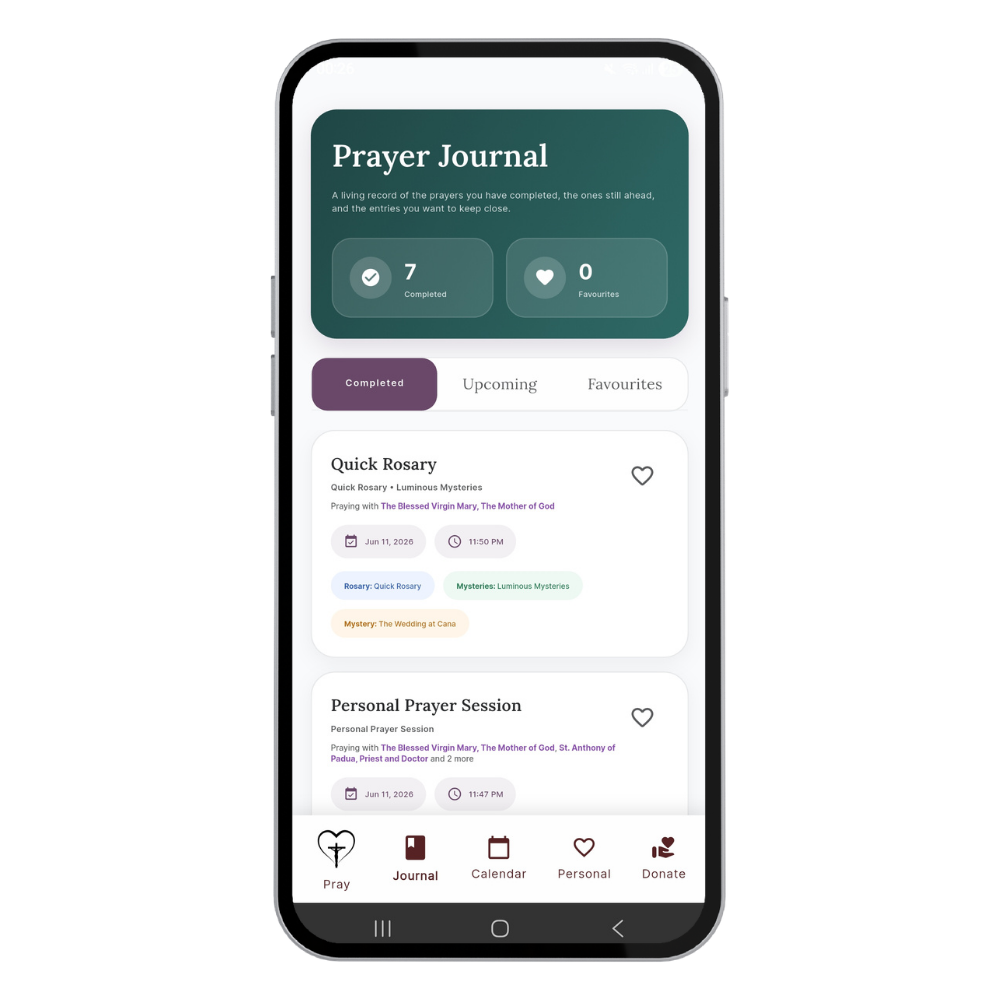
Prayer Journal
Tap Journal in the bottom navigation bar.
The header card shows your total Completed sessions and your Favourites.
Use the three tabs to move between Completed (prayers prayed), Upcoming (scheduled sessions), and Favourites (sessions you have saved to return to).
Each entry shows the session name, the saints you prayed with, the date and time, and devotion details.
Tap the heart icon on any entry to add it to Favourites.
Tap any session to modify and to start praying
Scheduler
Schedule any devotion. Pray at the right time.
Every devotion in Devotio can be scheduled — the Rosary, the Stations, a novena, a Personal Oratory session. Scheduled prayers appear in your Calendar tab.
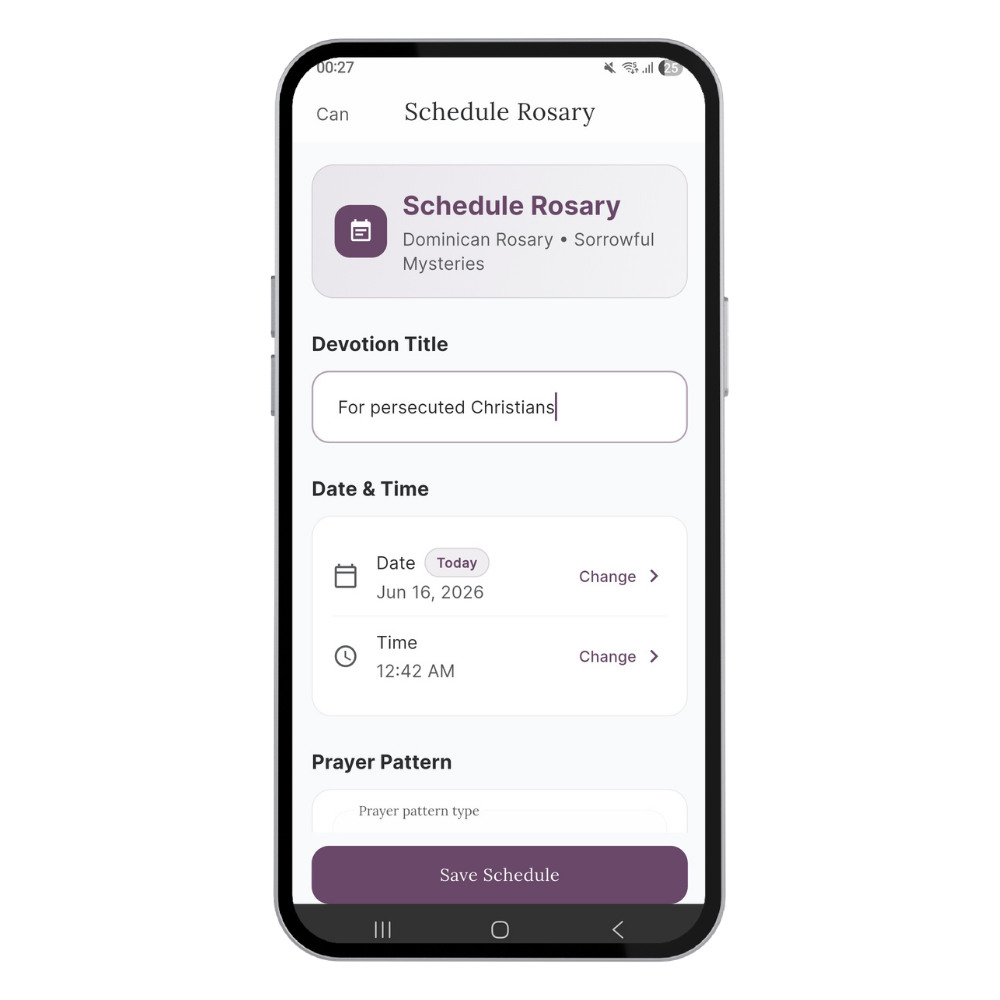
Scheduler
At the end of any setup flow, look for the Schedule option.
Set a Devotion Title, choose a Date and Time, then tap Save Schedule.
To begin straight away, tap Schedule and Pray Now - it saves the schedule and starts the prayer immediately.
All scheduled sessions appear in the Calendar tab (bottom navigation bar) and in the Upcoming tab of the Journal.
Backup & Data
Export, restore, or clear your data at any time.
Because Devotio stores everything locally on your device, your data is yours entirely. You can back it up, restore it, or remove it whenever you choose — from the Settings screen.
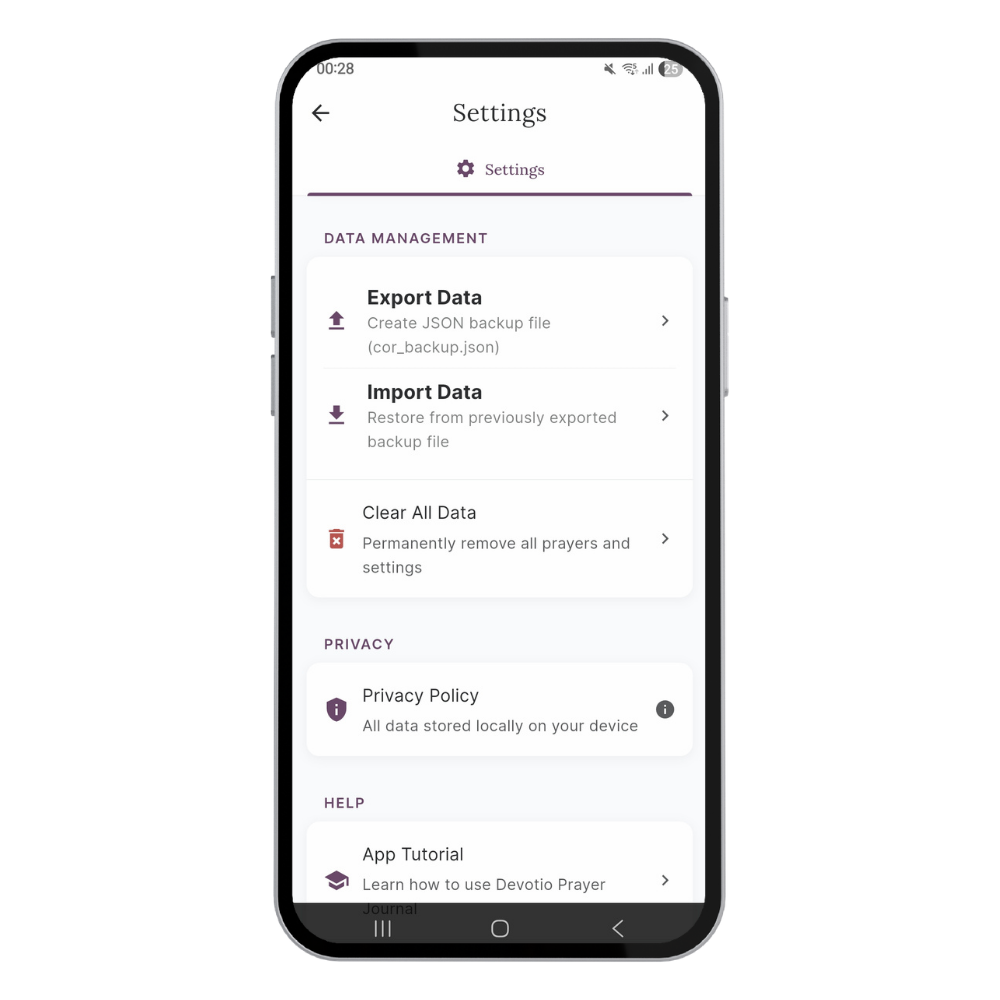
Backup & Data
Tap the Settings icon (⚙) in the top right of the home screen.
Under Data Management, tap Export Data to create a backup file (cor_backup.json). Save it anywhere on your device or to cloud storage.
To restore from a backup, tap Import Data and locate your previously exported file.
To permanently remove all data from the app, tap Clear All Data. This cannot be undone. Export a backup first if you may want to restore later.
You will find a link to the Privacy Policy, which confirms that all data is stored locally on your device, and a link to this tutorial page under the Help section.
In the name of the Father, and of the Son, and of the Holy Spirit. Amen.
Frequently Asked Questions
-
No.
Your intentions, prayer journal, devotional history, and personal prayer sessions are stored locally on your device and are never transmitted to us.
Devotio was built on the conviction that your interior life belongs to God, not to a server. We are architecturally incapable of seeing what you pray about.
-
Yes. The heart of Devotio - all prayers, devotions, Scripture, intentions, and features - is free, with no subscription and no advertising.
Devotio is supported entirely by voluntary contributions from those who are able and willing to give. If you are not in a position to support, please simply use the app and pray for this work. Your prayers are every bit as valuable as any financial gift.
-
Devotio includes three Catholic Bible translations, each serving a different need:
The Catholic Public Domain Version (CPDV) - a modern English translation that is clear, accessible, and a natural starting point for anyone new to praying with Scripture.
The Douay-Rheims Bible - the traditional English Catholic translation, produced by English Catholic exiles in the late sixteenth century from the Latin Vulgate. The language the English-speaking Church has prayed with for centuries.
The Latin Vulgate - the same text the Church Fathers, the Councils, and the saints read. For anyone who wants to pray with Scripture in the language of the Church's tradition.
You can switch between translations at any time within the app.
-
The Personal Oratory is Devotio's prayer session builder. Rather than offering you a fixed list of content, it starts with you — your intentions, your circumstances, the themes that matter to you right now — and builds a session around them.
Choose a theme, add your intentions, and Devotio draws from its library of saints, prayers, and Scripture to create a prayer session that is genuinely personal to your situation. Every session is different because every day is different.
-
Devotio includes a wide range of traditional Catholic prayers and devotions:
The full Rosary — all twenty mysteries, or the traditional fifteen, bead by bead. The Stations of the Cross. Chaplets. Litanies in modern English, traditional English, and Latin. The Surrender Novena, with your personal intentions woven in. Traditional Catholic prayers including the Memorare, the Angelus, the Anima Christi, and many more.
All devotions can be added into active prayer sessions, and the app includes a liturgical calendar so your prayer life stays connected to the rhythm of the Church's year.
-
Yes - and this is one of the things that makes Devotio different.
The Intentions Diptych is inspired by the two-panelled prayer tablets used in the early Church: the names of the living on one side, the departed on the other, carried into every prayer. In Devotio, you add the people and situations you are holding — and the app weaves them into your sessions, suggesting prayers, saints, and Scripture that speak to those specific circumstances.
Your intentions remain on your device for as long as you keep them. They are never transmitted anywhere.
-
Yes. Every devotion and prayer type in Devotio can be scheduled - the Rosary, short rosaries, Stations of the Cross, chaplets, novenas, and the Personal Oratory. You can set daily reminders, build a series, and the app will integrate your schedule with the liturgical calendar so feast days and seasons appear alongside your own rhythm.
If life interrupts a session, Devotio remembers where you left off. A notification on the home screen lets you continue exactly where you were, whether you return in five minutes or five hours.
-
No, and it was never intended to be.
The Eucharist is the source and summit of the Christian life. Nothing replaces participation in the Mass, the sacraments, or time spent before the Blessed Sacrament.
Devotio exists to support your prayer life between those sacred encounters - to help you carry the grace of Sunday into the rest of the week. It is a companion for the journey, not a substitute for the destination.
-
Devotio was conceived and designed by one independent Catholic who wanted something faithful, private, and intentional. The production app was built with the help of a skilled Catholic engineer, engaged feature by feature to bring the vision to life.
It is built as an apostolate rather than a business. The prayers, the devotions, the Scripture, your intentions — free to use, and the heart of it always will be.
If Devotio helps one person develop a regular, meaningful prayer life, the work was worth it.
-
Yes. Devotio is available as a free download on both the App Store (iPhone and iPad) and Google Play (Android).
-
Item descriptionNot at present. Devotio is a text-based prayer app — the prayers, Scripture, and devotions are read rather than heard.
Audio is something we hope to offer in the future, subject to the donations that make further development possible.
If audio comes, it will be done properly: a single distinguished voice recording the prayers and Scripture in English and Latin, with sacred music as accompaniment - not guided meditation, not narrated sessions, but the tradition as it has always been heard.
For now, the silence is part of the intention. Prayer is a conversation, not a performance. Devotio gives you the words. The rest belongs to you and God.
-
The app’s artwork is AI-generated for now. This was a launch decision, not a hidden shortcut - we intend to replace it with public domain sacred art over time.